Send batch emails in TradeSchool's Applications Module.
Email Correspondence Information
Sending batch emails with merge data is a feature in TradeSchool. It allows users to efficiently communicate with a large number of recipients while personalizing each message. By incorporating merge data, users can dynamically populate specific fields within the emails with information tailored to each recipient, such as their name, contact details, or other relevant data.
You can send email correspondences from the Users, Applications, Apprentices, and Contractors modules.
Merge Fields
A merge field (also called a mail-merge field or placeholder) is a token in a document or email that gets replaced with personalized information when you send it to many people. It makes each email feel tailored to the person receiving it.
If you need a new merge field added, contact support@tradeschoolinc.com.
For example, if you want to send a batch email to all apprentices enrolled in a particular course, you could create a template with merge fields for the apprentice’s name and course details. When the email is sent, the merge fields are replaced with the corresponding information for each recipient, resulting in personalized emails for every individual.
Creating an Email
To start, click on the Applications module. Next, go to the Correspondence > Emails > Details tab.
You can select an existing template from the list on the right or click the + icon to create a new one.
Fields:
- The Name field is the name of your template.
- The Description field is where you enter notes about the purpose of the email.
- The Sort field specifies the order.
- The Priority field allows you to select a background color.
High priority = Red, Medium priority = Yellow, Low priority = Green.
Below the separator line are the pertinent fields for your email template.
Each field can contain hard-coded text that is the same for every record in your batch, or you can place merge fields (such as the main email) to replace it with live data for each record in your group or found set.
- The From name and email should be your name and email address.
- The Subject can be a merge field, but it usually remains the same for everyone in the batch.
- The To field will typically be the merge field for Main Email so the email is sent to the person whose record it is.
CC and BCC recipients will receive one copy of the email for each person in the found set.
The Body is where you type your email message. To add merge fields for any email field, click the Merge Fields tab at the top and place your cursor in the field where you want the placeholder to appear. Then click the merge field from the list on the right.
Click the Full Window button to edit the body text in a larger area and use the word-processing and formatting tools. Closing the full-window view automatically saves the template.
Click Preview to see how this will appear to the recipient. It will merge all the data with the merge-field placeholders. Using the arrow at the top, click through several records in preview mode to ensure everything appears correctly.
When you’re ready, click Send for the current record or the found set.
Monitor Outgoing Messages
In the module you are in, view outgoing messages by opening the Correspondence > Email > Log tab.
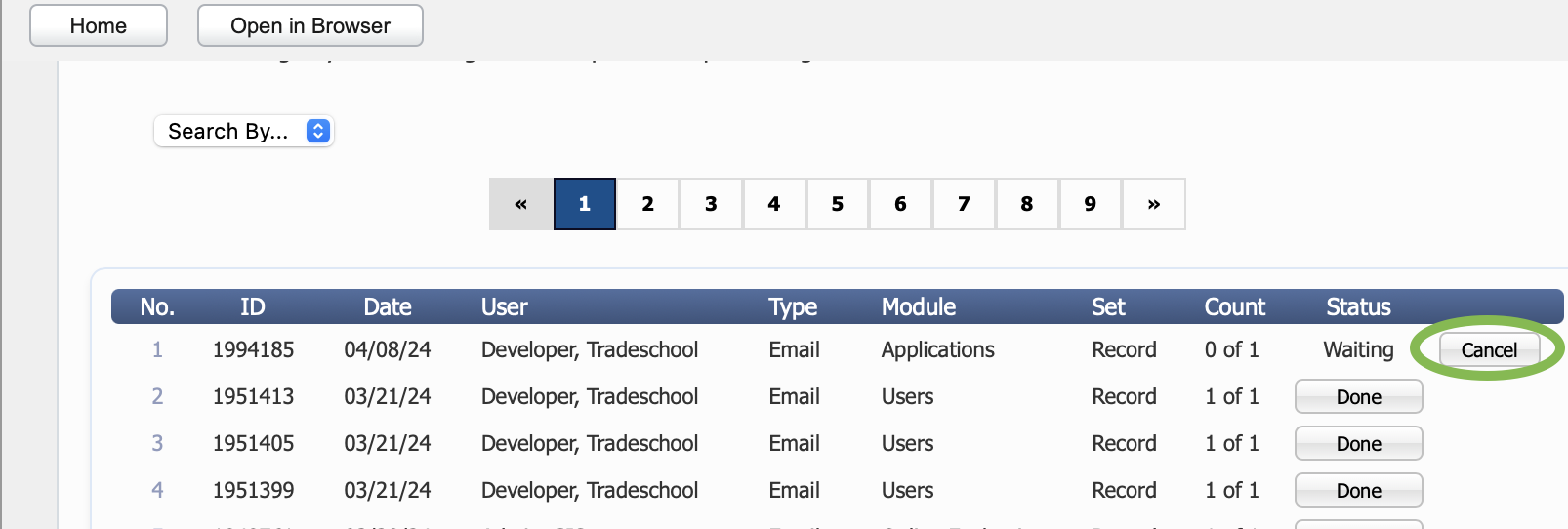
When a batch email has been processed, you can click the Done button to view the status of each message.
If you sent a message by mistake, you can stop the sending process if you act quickly. Navigate to Correspondence > Email > Log and click Cancel under Status. This stops the remaining emails from being sent. If the Status shows Done, it’s too late to stop it.
Record-Keeping
For record-keeping, every time you send and post an email template it is added to your correspondence history.
In the module you are in, click the Correspondence > History tab.
Messages sent are also visible in Settings > Web Services > Server > Messaging.
Comments
0 comments
Please sign in to leave a comment.