The TradeSchool Mobile App allows Journeymen to complete apprentice-related tasks and manage continuing education directly from their mobile device.
Using the app, Journeymen can:
- Complete apprentice evaluations
- Review and approve apprentice time cards
- Track continuing education classes
- Monitor certifications and expiration dates
- Update contact information
- Receive push notifications for important actions
Important: Completing Evaluations Without a Login
Journeymen who normally log in through Web Services on a browser can instead log in directly through the TradeSchool mobile app.
Journeymen who typically complete evaluations by clicking a link in an email do not need a login to complete evaluations.
If the TradeSchool app is installed on the phone, selecting the evaluation link from the email will automatically open the evaluation in the mobile app. The evaluation will appear in a mobile-friendly format, allowing it to be completed without logging in.
Logging In
To log in to the mobile app:
- Open the TradeSchool Mobile App.
- In the Select School field, search for and select the appropriate training center.
- Enter the email address and password associated with the account.
- Tap Login.
If the password has been forgotten, select Forgot Password and follow the prompts to reset it.
Some devices may allow login using saved credentials or Face ID for faster access.
Dashboard Overview
After logging in, users will land on the Dashboard.
The dashboard provides quick access to key information and tasks, including:
- Pending apprentice evaluations
- Apprentice time card approvals
- Continuing education classes
- Certifications
- Contact information
This page serves as the primary overview of items requiring attention.
Reviewing Time Cards and Completing Apprentice Evaluations
Journeymen may be asked to complete evaluations for apprentices. As part of the evaluation process, the apprentice’s submitted time card will also be reviewed.
To complete an evaluation:
Open the pending evaluation from the dashboard.
Review the apprentice’s submitted time card and reported hours.
Selecting the monthly total will display a breakdown of hours by work category.
Complete the required evaluation fields.
Depending on the training center configuration, evaluations may appear in one of two formats:
Comment-based evaluation
Questionnaire-style evaluation
Once the evaluation and time card review are complete, two actions are available:
Approve
Approving confirms that the reported hours are accurate and submits the evaluation to the training center for review.
Reject
If corrections are needed, select Reject and include comments explaining the issue. The apprentice will then need to correct the time card and resubmit it.
Some evaluations may include deadlines, and reminders may be sent through push notifications.
Continuing Education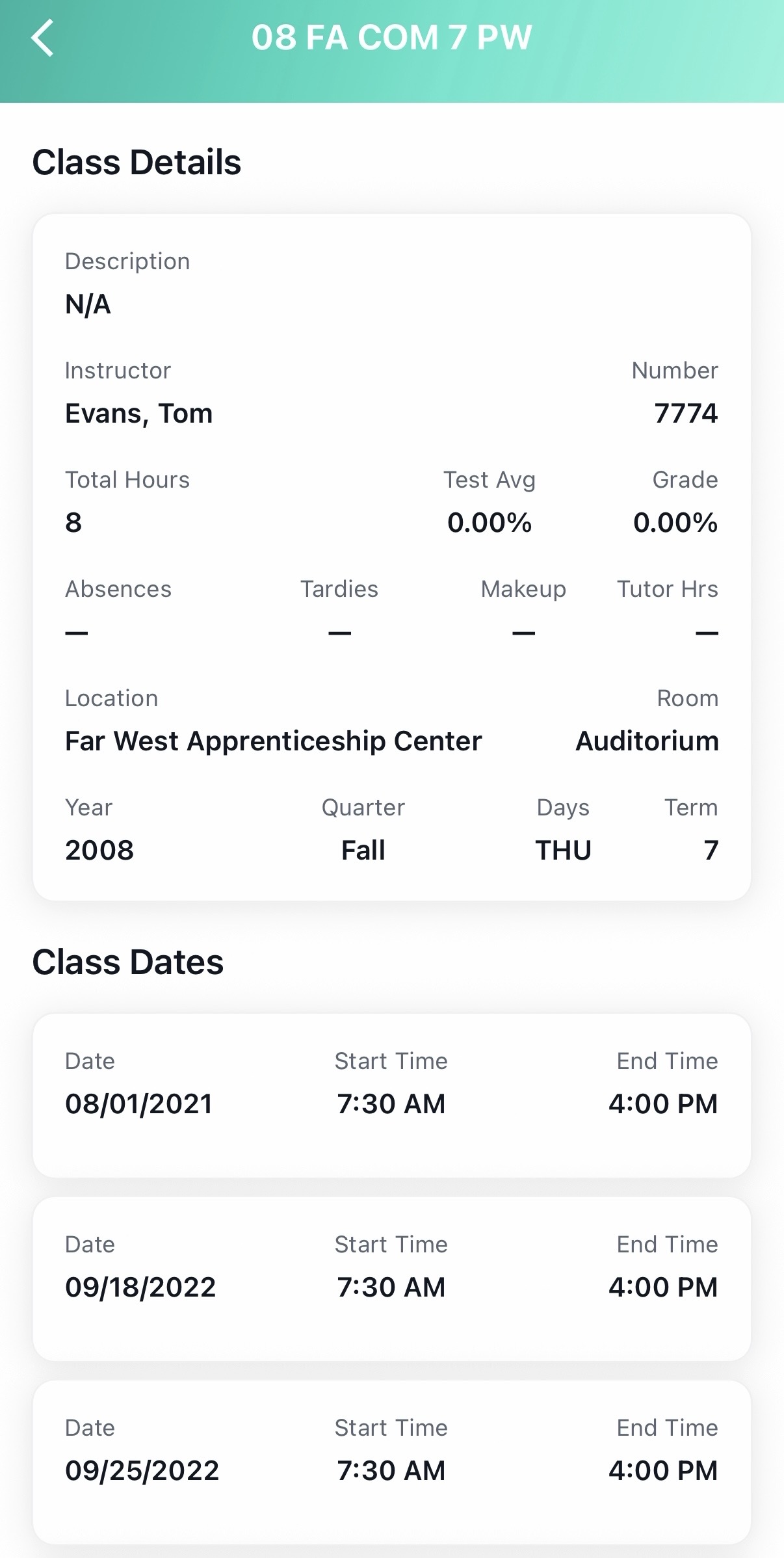
The Continuing Education section allows Journeymen to:
- View enrolled classes
- Track completed CE hours
- View class schedules and details
- Review grades
Certifications
The Certifications section allows Journeymen to:
View current certifications
Monitor expiration dates
- Check certification status
Regularly reviewing this section helps ensure certifications remain current.
Updating Contact Information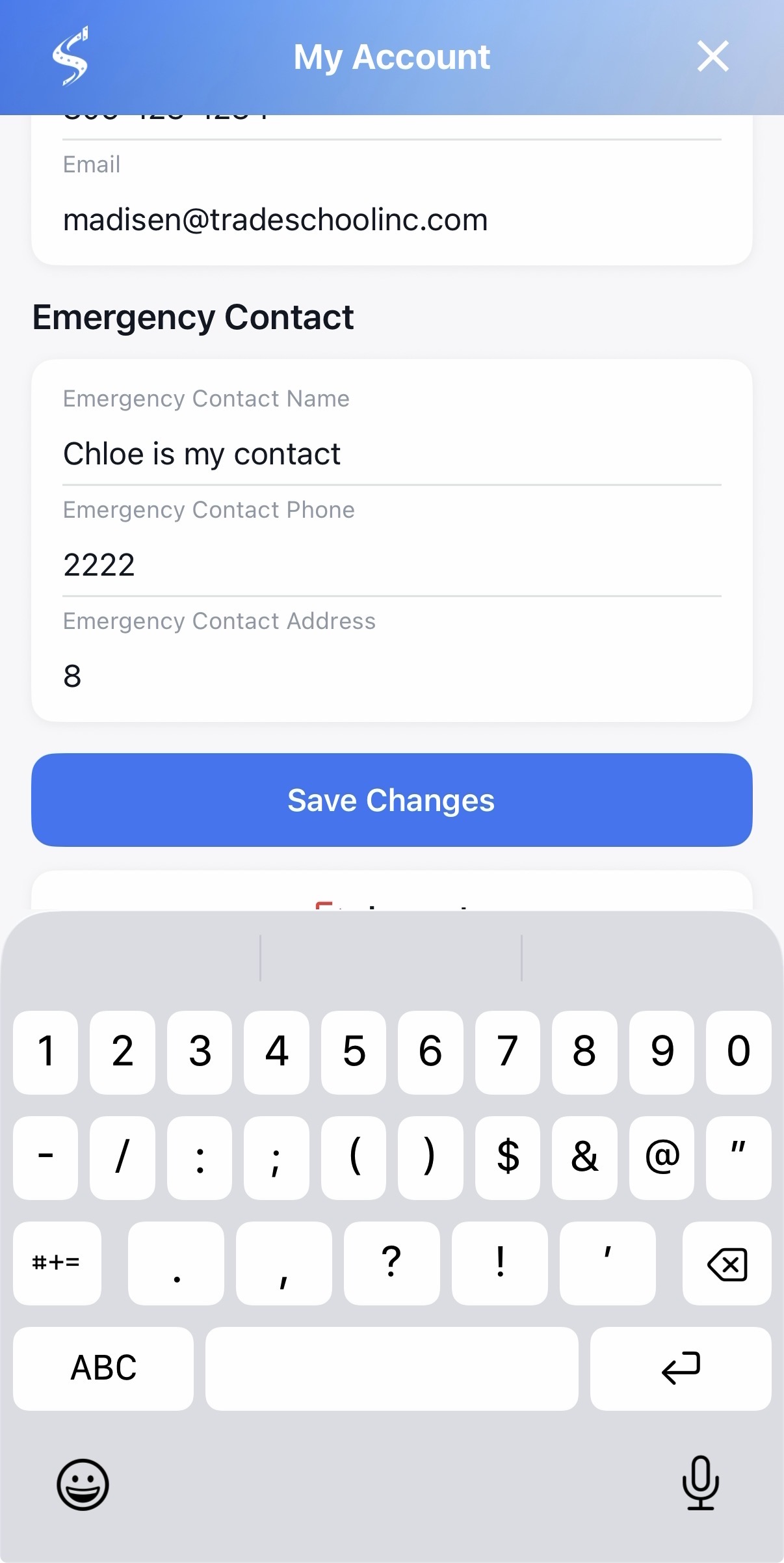
Keeping contact information up to date ensures important notifications are received.
Contact information can be accessed by navigating to the Dashboard and selecting the top right icon.
Users should confirm the accuracy of:
- Phone number
- Emergency contacts
- Mailing address
Accurate contact information ensures delivery of:
- Evaluation requests
- Time card notifications
- Certification reminders
- Continuing education updates
Push Notifications
If enabled, Journeymen may receive push notifications for:
- New evaluation requests
- Time cards awaiting approval
- Certification updates
- Continuing education reminders
All notifications — including push notifications, emails, and text messages — can be viewed by selecting the message icon in the bottom right of the dashboard.
Keeping notifications enabled helps ensure important tasks are not missed.
Troubleshooting
If issues occur while using the mobile app, review the following:
Evaluation email not received
Check spam or junk email folders.
Evaluation link does not open properly
Confirm the TradeSchool Mobile App is installed and updated.
Forgot password
Use the Forgot Password option on the login screen.
Missing time card or evaluation
Contact the training center directly. Training centers manage records, permissions, and assignments.
The TradeSchool Mobile App makes it easy to:
Complete evaluations promptly
Review and approve time cards
Monitor continuing education
Keep certifications current
Keep your contact information updated
The app helps you support apprentices and stay compliant — right from your phone.
Comments
0 comments
Please sign in to leave a comment.