Welcome to the TradeSchool Mobile App!
This guide will walk you through how to use the app as an Apprentice, including:
Logging in
Submitting work reports
Tracking hours and advancement
Viewing evaluations
Monitoring certifications and attendance
Managing notifications
What to do if something doesn’t look correct
The TradeSchool Mobile App allows you to track your apprenticeship progress anytime, anywhere — directly from your mobile device.
Logging In
Open the TradeSchool Mobile App
In the Select School field, search for and select your Training Center or JATC.
Enter your email address and password.
Tap Login.
If you forgot your password:
Tap Forgot Password
Follow the prompts to reset it.
If your phone allows Face ID or saved login credentials, you may enable those features for faster access in the future.
Home Dashboard Overview
After logging in, you will land on your Dashboard. This screen provides a snapshot of your progress.
You can view:
Current pay rate
Total OJT (On-the-Job Training) hours
Overall advancement progress
This page gives you a quick overview of where you stand in your program.
If any information appears incorrect (for example, missing hours), please contact your Training Center directly, as they manage your records.
Submitting Monthly Work Reports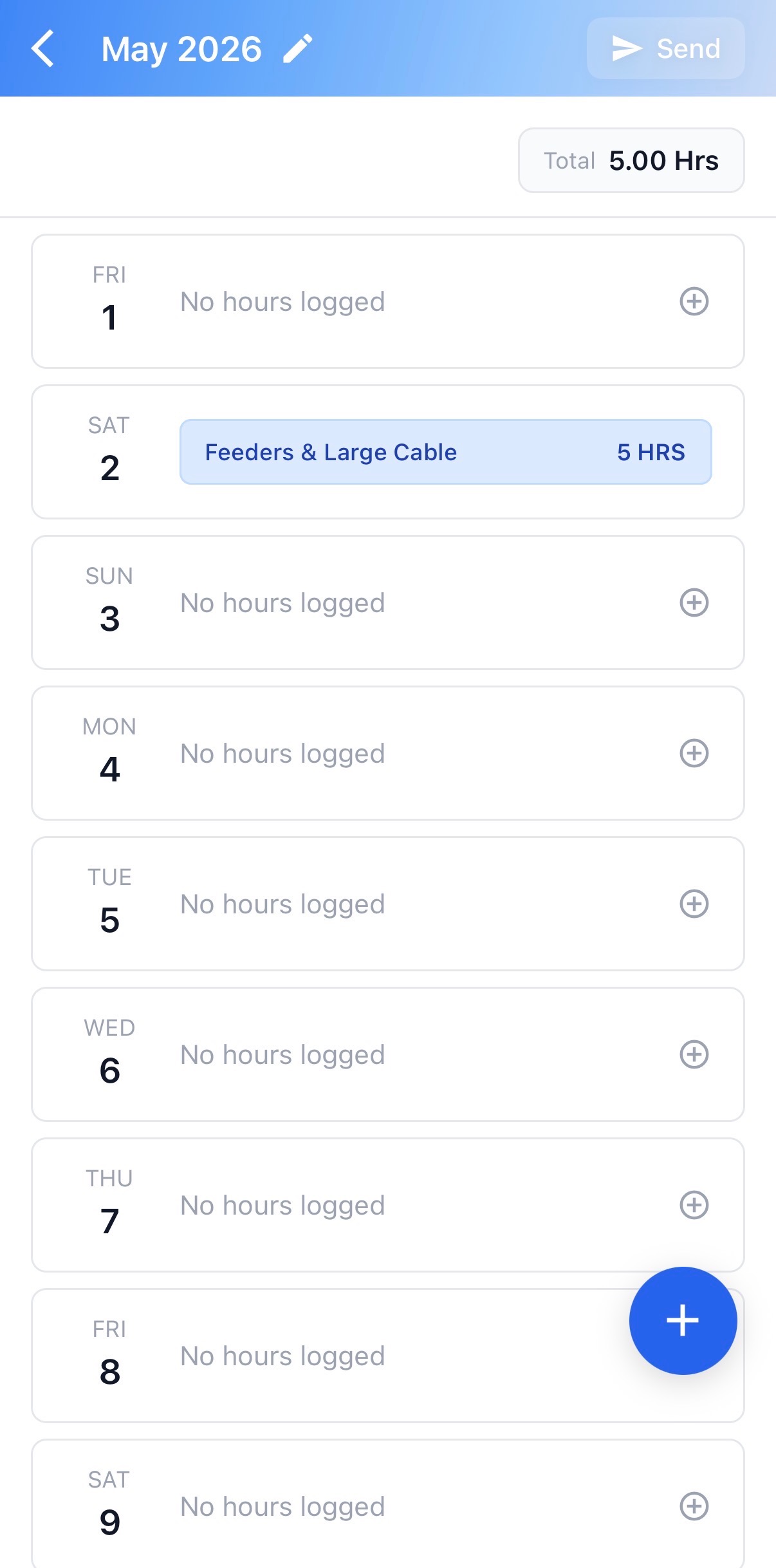
Submitting your work reports is one of the most important responsibilities in the app.
To Submit a Work Report:
Navigate to the Work Reports section.
Select the appropriate date.
Enter your OJT hours worked for that day.
Editing or Removing Hours
To edit an entry, tap on the existing hours.
To remove hours, swipe right on the entry.
Tap the total hours to view a breakdown by category.
To change the month, tap the pencil icon.
Submitting Your Report
At the end of the month:
Tap Send.
If your program requires evaluation of work reports, the status will show as “Waiting Evaluation” until it has been reviewed and approved.
⚠️ Be sure to:
Submit your hours on time each month.
Double-check your entries before submitting.
Late or incorrect reports may delay approvals and advancement.
Tracking Advancement Requirements
Advancement is based on completing specific requirements set by your Training Center.
In the Advancement Progress section, you can:
View completed requirements
See what is still needed for your next advancement
Advancement typically occurs once all requirements are satisfied, though processes may vary by Training Center.
Keeping your hours accurate and up to date helps prevent delays.
Employment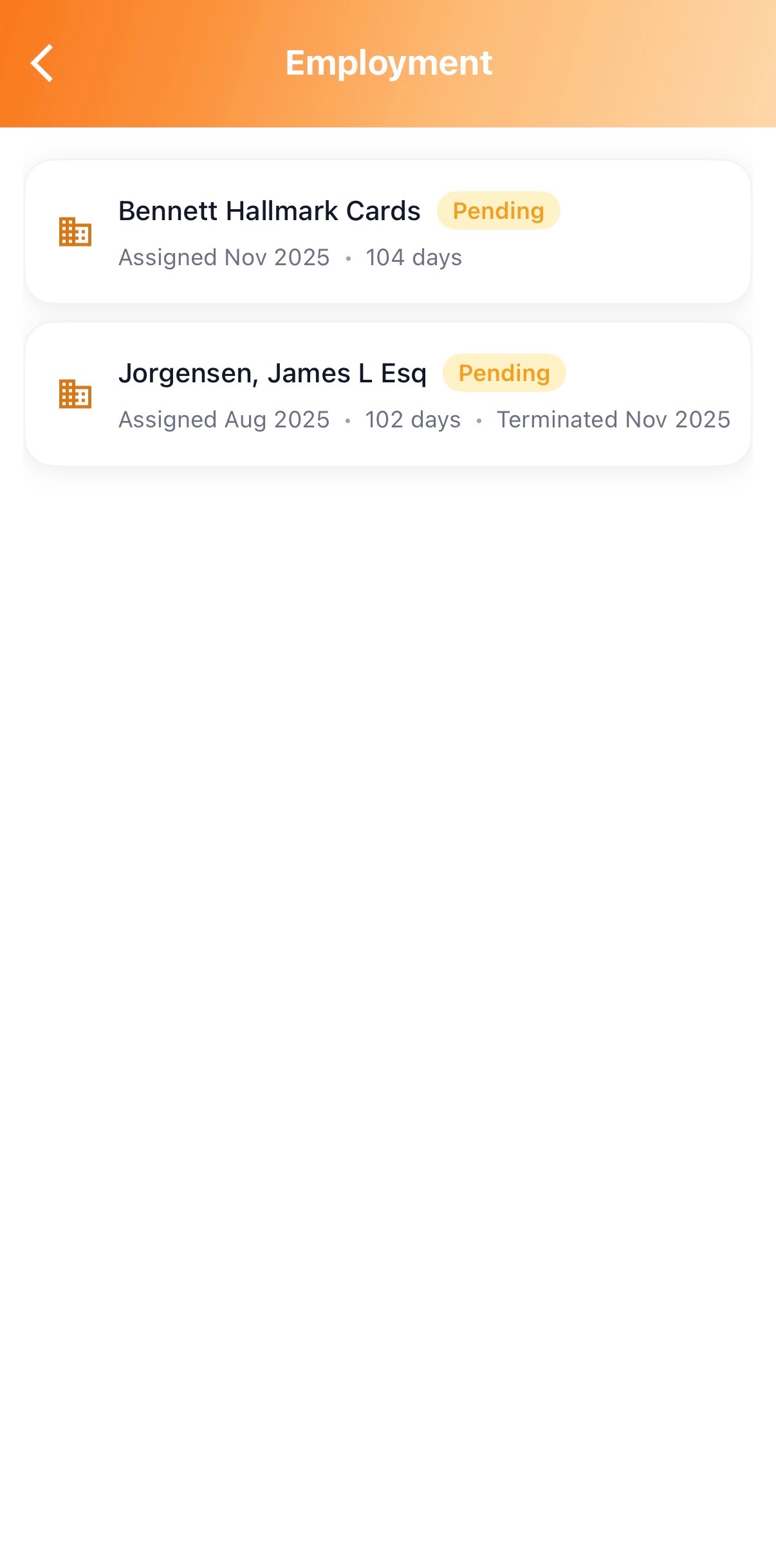
In the Employment section, you can:
Request an evaluation (if your program allows)
View your employment history
Verify your current employer
When you submit an evaluation request, it will remain pending until your employer completes it.
You can return to this section at any time to check the status.
Evaluations
In the Evaluations section, you can:
Review your cumulative evaluation average score
View completed evaluation details
Tap on an individual evaluation to see:
Score breakdown
Comments
Class Information
If your Training Center uses the app for classroom tracking, you may be able to:
View enrolled classes
Review class history
See class schedules
View grades
Tap on an individual class to see:
Class dates
Grades
Total absences
Overall grade average
Pay History
Within the Advancements section, you may see a Pay History area.
Tap the arrow to view:
Previous advancement periods
Dates of advancement
Associated pay rates
This section allows you to track your progression over time.
If you have questions about pay classifications or advancement timing, contact your Training Center directly.
Certifications
On your Home page, your most recent certification will be displayed.
To view all certifications:
Tap View All
Select an individual certification to see:
Details
Expiration date
This section helps you monitor:
Active certifications
Certifications expiring soon
Expired certifications
Check this section regularly to remain compliant and avoid lapses.
Absence Log
The Absence Log allows you to view attendance records.
You can see:
Date of absence
Type of absence
Related notes
Outstanding makeups
Attendance may impact advancement or program standing, so review this section regularly.
Documents
You can access important program documents directly within the app.
To view a document:
Navigate to the Documents section.
Tap on the document to open or download the attachment.
Notifications
To manage notifications:
Tap the Messages icon in the bottom-left corner of the app.
Review your notification settings.
Depending on your Training Center’s setup, you may receive:
Push notifications
Email reminders
Alerts for missing reports
Evaluation updates
We recommend keeping notifications enabled to avoid missing important updates.
If Something Doesn’t Look Correct
If any information in your account appears incorrect or outdated, please contact your Training Center directly.
Your Training Center manages all apprentice records and can review or update your information as needed.
Staying on Track
The TradeSchool Mobile App is designed to help you stay organized throughout your apprenticeship.
Be sure to:
Submit work reports on time
Monitor your advancement progress
Keep certifications current
Review attendance regularly
Update your contact information as needed
Your apprenticeship is the foundation of your career — and this app helps you stay in control of your progress.
Comments
0 comments
Please sign in to leave a comment.